Somewhere in your home right now, a video call is freezing, a film is buffering to potato quality, and someone is standing on one leg near the kitchen window because that’s where the signal lives. The universal response — call the provider, buy a new router, upgrade the plan — usually treats the wrong patient. In the majority of homes, the internet arriving at the house is fine; what fails is the last twenty meters between the router and your device. That last stretch is governed by placement, physics, and configuration — all of it fixable in an afternoon, most of it free.

This guide works from the wall outward: first prove where the problem actually lives (two free tests), then fix placement (the single highest-impact change), then tune the settings that matter, and only then — if the evidence demands it — spend money. The order is the whole point: most “slow internet” is solved before the spending stage.

1.Diagnose First: Where Does the Speed Actually Die?

Two measurements separate the two kinds of slow internet, and together they take five minutes. Test one: run a speed test (the standard free tool is Ookla’s Speedtest) on a device connected to the router by ethernet cable, or standing immediately beside it on Wi-Fi. Test two: run the same test in the room where you usually struggle. The comparison is the diagnosis:

Table 1 — The two-test diagnosis

Result Meaning Your Fix
Fast at the router, slow in the back room The classic case: Wi-Fi coverage problem Sections 2–5 — placement, bands, interference. No new plan needed
Slow everywhere, even wired The pipe itself is the limit Section 7 — plan/provider territory; compare against what you pay for
Fast in tests, but video calls still stutter Likely latency/congestion, not raw speed Section 5 — band steering and the one-setting fix for busy homes

What counts as “fast enough”? The FCC’s Broadband Speed Guide publishes the baseline: roughly 5–8 Mbps for HD streaming, 25 Mbps for 4K, 1.5–6 Mbps for video calls. The revelation for most households: everyday needs are modest — a stable 25 Mbps beats an unstable 200. Stability, not headline speed, is what your devices actually experience, and stability is a Wi-Fi problem, not a plan problem.

2.Placement: The Free Fix That Changes Everything

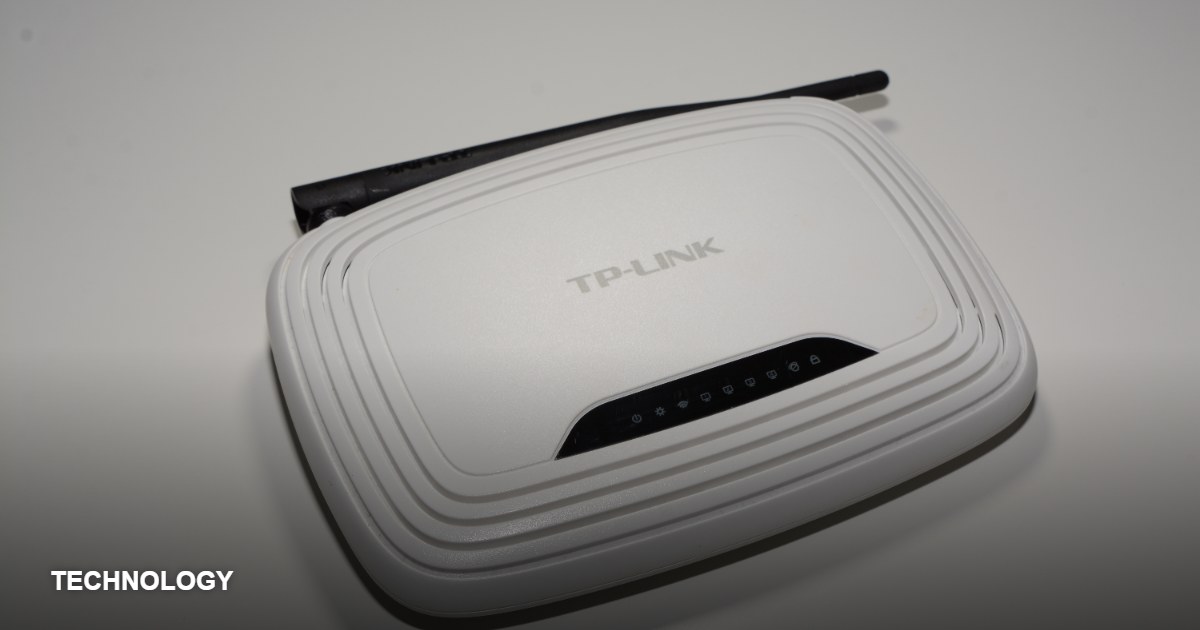
Wi-Fi is radio, and radio has no respect for your furniture arrangement. The signal spreads from the router in a rough sphere, weakening with distance and bleeding strength through every obstacle — and some obstacles are far worse than others. The placement rules, in order of impact:

  1. Centralize. The router belongs near the middle of the home, not where the cable enters it. A router in the corner office delivers half its coverage to the garden and the neighbors. Moving it to a central hallway shelf — even with a longer cable to the wall socket — is the single biggest improvement most homes can make.
  2. Elevate. Radio travels poorly through the floor-level obstacle course of furniture. Routers work best at one to two meters high: a shelf, not the floor; never the carpet behind the TV bench.
  3. Expose. The cabinet that hides the router’s blinking lights also eats its signal. Open air, always — the router is infrastructure, not clutter.
  4. Mind the killers. Signal loss is not democratic. Solid brick and concrete walls are serious; but the true assassins are metal (filing cabinets, fridge sides, mirror backing, radiators), water (radiators, underfloor heating, that big aquarium), and foil-backed insulation in modern walls. A router sharing a wall with the kitchen often explains the mystery of the dead bedroom.
  5. Antennas vertical. On routers with adjustable antennas, straight up is the correct default for single-story spread — the signal radiates outward horizontally like a donut, not upward like a fountain.

The Ten-Minute Experiment

Before buying anything: move the router to a central, elevated, open position (a longer ethernet or coax cable to the wall point is a five-dollar accessory), then re-run the back-room speed test. In our experience this single change resolves the majority of “bad internet” complaints — the router was simply broadcasting its best signal into a closet.

3.The Two Bands: 2.4 GHz vs. 5 GHz, Explained Properly

Every modern router broadcasts on two frequencies, and the difference between them is a genuine trade-off, not a version number:

Table 2 — The bands, compared

2.4 GHz 5 GHz
Reach Long — penetrates walls better Short — fades fast through obstacles
Speed Slower ceiling Much faster at close/medium range
Crowding Congested (neighbors, microwaves, Bluetooth, baby monitors all share it) Far cleaner airspace
Best for Far rooms, smart home gadgets, anything through two walls The TV, the work laptop, the game console — same or next room

The practical strategy: put your important, stationary, bandwidth-hungry devices (TV streamer, work laptop, console) on 5 GHz, and let far-flung and low-need devices (smart plugs, sensors, the bedroom speaker) live on 2.4 GHz, which is all they need. Many routers offer “band steering” that assigns automatically — fine — but manual assignment is a one-time five-minute job with a permanent payoff. Note for newer routers: 6 GHz (Wi-Fi 6E/7) adds a third, even cleaner band for very close range; the same logic extends.

4.Interference and Channels: The Invisible Traffic Jam

In apartment buildings, your Wi-Fi competes with every network in earshot — walk through the air with a free analyzer app and you’ll count a dozen. When networks share a channel, they politely take turns, and politeness is slow. The fixes:

Change the channel. In your router’s settings (the admin page address is printed on the router’s label — typically 192.168.0.1 or 192.168.1.1 in a browser), the 2.4 GHz band offers channels 1, 6, and 11 as the non-overlapping choices; pick whichever your neighbors use least (a free Wi-Fi analyzer app on your phone shows the occupancy at a glance). The 5 GHz band offers many more channels and usually needs no attention. Mind the household interference: microwave ovens famously stomp on 2.4 GHz while running — if the kitchen Wi-Fi dies every time someone heats soup, that’s not ghosts, it’s physics, and 5 GHz solves it. Reboot on a schedule: routers are small computers that accumulate cruft; a monthly restart (many routers can schedule one for 4 a.m. automatically) clears memory leaks that masquerade as “slow internet.”

5.The Busy-Home Problem: When Everyone Streams at Once

The modern slowdown is often not speed but queueing: the 4K film, the game download, the cloud backup, and the video call all arriving at the router simultaneously, where the call — most sensitive to delay — waits politely behind gigabytes of movie. The antidote is a router setting called QoS (Quality of Service): one switch in the admin page that prioritizes latency-sensitive traffic (calls, gaming) over bulk transfers. Enabling it, and marking the work laptop as priority during work hours, is the closest thing in home networking to a free upgrade. A companion habit: schedule the big automatic jobs — cloud backups, game updates, OS downloads — for overnight hours in their respective apps. Congestion is a scheduling problem as much as a capacity one.

6.The Router Settings Tour: What Each One Actually Does

The router admin page intimidates because it presents forty settings when four matter. Here’s the tour worth taking, once, with a cup of coffee:

  • Network name (SSID) and password. Give both bands the same name and password if your router steers devices automatically; separate names if you prefer manual control. Either works — consistency matters more than philosophy.
  • Security mode. Should read WPA2 or WPA3. If it says WEP or “open,” that’s the urgent fix — both performance and safety depend on it.
  • Firmware update. Usually one button, occasionally automatic. Updates quietly fix performance bugs and close security holes; this is the thirty-second habit with outsized returns.
  • QoS / device priority. Covered in the previous section — the busy-home fix.
  • Guest network. Enable it for visitors and smart gadgets: they get internet, they don’t get a path to your laptop. Free, two minutes, and permanently sensible.

Everything else — port forwarding, DNS, DMZ — is advanced territory you can safely ignore for the goal of this guide. The amateur’s trap is tuning everything; the pro move is touching the four that matter and leaving the rest at factory wisdom.

7.The Radical Option: When a Cable Beats Everything

Here is the open secret of home networking: the best Wi-Fi is the Wi-Fi you don’t need for the device in question. Anything that never moves — the desktop PC, the TV streamer, the game console, the mesh node — is a candidate for a plain ethernet cable, which delivers full speed, zero interference, and zero congestion contribution. Every device you wire is a device removed from the wireless queue, improving Wi-Fi for everything that remains.

The objection is always aesthetics — and it’s weaker than it appears. Flat ethernet cables run along baseboards nearly invisibly; a ten-meter cable costs less than a takeaway lunch; and for the work-from-home laptop that hosts your career’s video calls, a cable to the router is the difference between “usually fine” and “never thinks about it.” The hierarchy that professionals use: wire the stationary, split the mobile across bands, and reserve Wi-Fi’s magic for the devices that truly move.

8.Coverage Gaps: Extenders, Powerline, and Mesh

When placement and tuning aren’t enough — the genuinely big house, the concrete-floored flat, the garden office — hardware extends coverage. The options, honestly graded:

Table 4 — Extending coverage: the three tools

Tool Cost Strength Weakness
Wi-Fi extender/repeater $25–60 Cheap, five-minute setup, fine for one dead room Halves throughput on the extended leg; a patch, not a system
Powerline adapter pair $40–80 Carries network over electrical wiring — the fix for concrete floors and far offices Performance varies wildly with wiring quality; try before committing
Mesh system (2–3 nodes) $120–300 The proper fix: seamless whole-home coverage with one network name, self-managed Costs real money — justified when simpler fixes demonstrably fail

The decision rule: one dead room → extender. One dead floor or a distant office → powerline. Whole-house coverage problems in a large or multi-story home → mesh, placed in the chain-of-sight positions the manual describes. And one honorable mention: an old router gathering dust can often be converted into a wired or repeater access point for free — the zero-dollar mesh.

9.When It Really Is the Plan (and the Router)

Sometimes the two-test diagnosis points outward. If wired speed at the router is persistently far below your plan’s promised rate, test at different hours (evening congestion is real), then call the provider with your test history in hand — measured evidence gets results that complaints don’t. If the router itself is ancient (pre-2018, roughly), upgrading to a current Wi-Fi 6 model is the one purchase that genuinely improves everything downstream: better range, better multi-device handling, and modern band steering. But note the order of operations: this section exists last because in most homes it turns out to be unnecessary.

10.Seven Wi-Fi Mistakes, Corrected

  1. The router in the corner where the cable happens to be. Placement beats equipment. Centralize and elevate before buying anything.
  2. Hiding the router for aesthetics. The cabinet costs you real speed. Open air, always.
  3. Everything on one band. Split the heavy devices to 5 GHz deliberately; don’t leave it to chance.
  4. Never rebooting. A scheduled 4 a.m. monthly restart is the cheapest stability upgrade that exists.
  5. Running ancient firmware. Router updates fix performance and security; enable auto-update or check quarterly.
  6. Buying a mesh system first. Mesh is excellent — for problems placement and settings couldn’t fix. Spend the afternoon before the money.
  7. Testing speed over weak Wi-Fi and blaming the provider. The two-test method exists precisely to prevent this expensive misdiagnosis.

11.Frequently Asked Questions

How much speed does a household actually need?

Less than advertising suggests. By the FCC’s baselines, a family streaming two HD films and holding two video calls simultaneously needs roughly 25–40 stable Mbps. Beyond that, reliability and coverage deliver far more happiness than headline numbers.

Is 5 GHz always better?

No — faster but shorter-legged. Same room or one wall away: 5 GHz wins. Two walls or another floor: 2.4 GHz often delivers more usable speed precisely because it arrives at all.

Do Wi-Fi extenders really cut speed in half?

Repeaters that use the same radio to talk to both router and device do — that’s the physics of taking turns. It’s still a fair trade for a bedroom that currently has nothing; for primary workspaces, powerline or mesh is the honest fix.

How often should I replace a router?

Every five to seven years, or when your devices’ capabilities outgrow it. A 2019 Wi-Fi 5 router still serves most homes fine; a 2014 one is the bottleneck you’ve been blaming on the provider.

Where’s the router admin page again?

The address and default login are printed on the router’s own label — type the address into any browser while connected. Change the default admin password while you’re in there; it’s the one security step this guide insists on.

Should I turn my router off at night or reboot it regularly?

A scheduled weekly reboot is genuinely useful — many routers accumulate memory leaks and stale connection tables that a restart clears, and most modern routers let you schedule it for 4 a.m. so you never notice. Nightly power-offs, on the other hand, do nothing for performance and interrupt the firmware updates and maintenance tasks routers run overnight. Reboot weekly; leave it on otherwise.

Do “Wi-Fi booster” apps or antenna reflectors actually work?

No and mostly no. Phone apps cannot amplify your router’s radio — anything claiming to boost Wi-Fi from software is placebo at best. DIY foil reflectors behind antennas can nudge signal in one direction by a couple of decibels in ideal conditions, but the same effort spent on the fixes in this guide — placement, channel selection, band steering — returns ten times the improvement. Physics doesn’t negotiate: radio waves improve with position and clear airtime, not with accessories.

When is it finally time to replace the router?

Three signs say the free fixes are exhausted. First, the router is Wi-Fi 4 (802.11n) or older — the generational jump alone is transformative. Second, it can’t cover your space even from an optimal central position, which is a coverage problem that a mesh system solves properly. Third, it’s no longer receiving security updates from the manufacturer, which is the one replacement trigger that isn’t optional. A router is infrastructure: boring, invisible, and due for replacement every five to seven years.

Sources & Further Reading

Speed baselines: the FCC Broadband Speed Guide. Testing: Ookla Speedtest. All links verified live at publication. Related on this desk: the smart home starter kit assumes exactly the Wi-Fi foundation this guide builds.

Fast internet is mostly not bought; it’s arranged. Prove where the speed dies, move the router, split the bands, tame the queue — and only then, if the tests still say so, spend. The standing-on-one-leg era can end this afternoon.