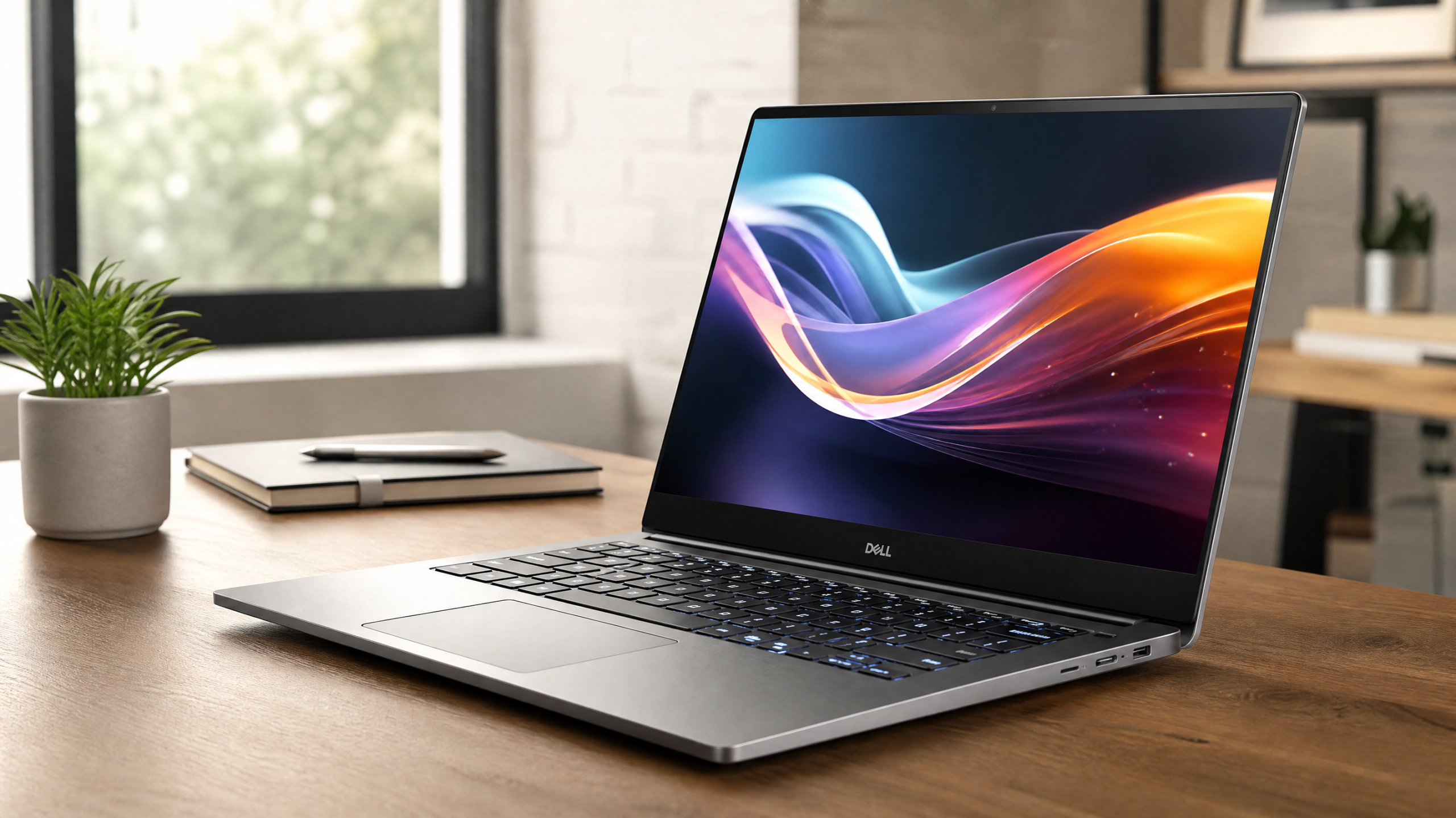
A quick framing note before we go further. “Lasts five years” doesn’t mean the laptop still runs — almost any laptop technically runs five years from now if it doesn’t physically break. It means the machine is still capable enough that you don’t dread using it, still gets security updates, still has a battery that lasts more than two hours, and still feels like a tool rather than a frustration. That bar is much higher than “boots up,” and it’s the bar most cheap laptops fail to clear.
The Three Things That Kill Laptops
Before we talk about what to buy, it helps to understand why laptops die. Excluding physical accidents (drops, spills, theft), three failure modes account for the overwhelming majority of laptops that get replaced:
The battery dies and isn’t replaceable. Lithium-ion batteries lose capacity gradually, typically dropping to 70–80% of original capacity after 500 to 1,000 full charge cycles. After three or four years of daily use, the battery that gave you 10 hours new now gives you 3. If the battery is glued in or hidden behind 30 screws and a service contract, most people just replace the whole laptop.
The specs become inadequate for current software. A laptop with 8GB of RAM was fine in 2018. In 2026, with modern browsers, Teams, and a few productivity apps open simultaneously, it spends most of its time swapping data to the SSD, which both slows the machine to a crawl and prematurely wears the storage. If the RAM is soldered to the motherboard, you can’t fix this. The whole machine has to go.
The hardware falls off the supported OS list. When Microsoft launched Windows 11, it imposed strict hardware requirements — including TPM 2.0, Secure Boot, and a list of approved processors — that made millions of perfectly functional Windows 10 PCs ineligible for the upgrade. According to Microsoft’s official Windows 11 system requirements, the minimum specs include a 1 GHz dual-core 64-bit processor on the approved CPU list, 4GB of RAM, 64GB of storage, UEFI firmware, Secure Boot, and TPM 2.0. Buy a laptop with a CPU that’s already a few generations behind, and you may find yourself locked out of the next major OS release in three years.
Designing a five-year laptop is really about defending against these three failure modes from the start.
Step 1: Set a Realistic Budget
There is a strong, well-documented relationship between laptop price and longevity. Budget laptops under roughly $600 typically last two to three years before feeling obsolete. Mid-range business laptops in the $900–$1,500 range commonly reach four to five years. Premium business laptops and MacBooks above $1,500 can reliably run for five to seven years with normal care, and sometimes longer.
This is not a marketing trick. It reflects real differences in component quality: better chassis materials, better hinges, higher-cycle batteries, faster and more durable SSDs, more capable processors, more memory headroom, and crucially, more serviceable designs. A $1,200 laptop that lasts six years costs $200 per year of use. A $600 laptop that lasts three years costs the same per year — but you absorb the disruption of a replacement twice as often, plus the hidden cost of slower performance, fewer features, and worse build quality the entire time.
Consider also the refurbished business-laptop market. A two-year-old off-lease ThinkPad T-series, Dell Latitude, or HP EliteBook from a reputable refurbisher often costs less than a new entry-level consumer laptop while delivering enterprise-grade build quality and several years of remaining useful life. For many buyers, this is the highest-value path to a long-lasting machine.
Step 2: Get the Specs Right — and Right Means Generous
The specs you buy today need to be adequate not just now, but five years from now, when software demands have grown by 50–100% and you’re running things that don’t exist yet. The general rule: buy more than you need today, especially in categories that can’t be upgraded later.
RAM: The Single Most Important Decision
If you remember nothing else from this guide, remember this: 16GB of RAM is the functional minimum for a laptop you intend to use in 2030, and 32GB is the safe bet. Software demands have grown faster than any other component requirement. A modern browser with 20 tabs, a video call, Slack or Teams, and a couple of productivity apps regularly use 10–12GB by themselves. An 8GB machine spends most of its time managing memory pressure rather than doing work.
The decision matters more on machines with soldered RAM, because you cannot upgrade later. On a soldered laptop, buy at least 32GB if your budget allows — the difference between 16GB and 32GB at the time of purchase is typically $100–$200, which is far cheaper than replacing the entire laptop in three years because you ran out of memory.
Storage: 1TB Should Be the Default
256GB is a trap. You’ll fill it within a year between the OS, applications, downloads, and cloud-sync caches. 512GB is workable. 1TB is comfortable and gives you headroom for the next five years. Always buy NVMe SSD, never eMMC or older SATA drives. NVMe SSDs are dramatically faster, more durable, and last longer under heavy use. If the laptop has a replaceable M.2 SSD slot, you can also upgrade storage later — another point in favor of more repairable designs.
Processor: Buy Current Generation, Buy Mid-Tier
A modern mid-tier CPU — Intel Core Ultra 5/7, AMD Ryzen 7, or Apple M-series — will be more than adequate for the next five years of normal productivity work. The biggest mistake here is buying a low-end chip like a Celeron, Pentium, Intel Core i3, or AMD Athlon. These are designed for entry-level price points and will feel inadequate within 18–24 months as software demands grow.
Avoid CPUs that are already two or three generations behind. Microsoft has shown with Windows 11 that it will exclude older processors from future Windows releases, which means a laptop bought with an old-but-still-sold CPU may lose OS support years before the hardware itself wears out.
Step 3: Prioritize Repairability and Upgradability
This is where most longevity guides skip ahead. They shouldn’t, because repairability is the single largest variable separating laptops that last from laptops that don’t. iFixit’s repairability scoring rubric evaluates how easily a laptop’s most failure-prone components can be replaced: the battery, storage, memory, keyboard, display, and ports. Higher scores mean lower long-term cost and longer practical lifespan.
According to iFixit’s coverage of the latest ThinkPad scoring, the Lenovo ThinkPad T14 Gen 7 and T16 Gen 5 earned the first 10/10 repairability score ever awarded to a mainstream business laptop, thanks to tool-free battery swaps, standard M.2 SSD storage, user-serviceable LPCAMM2 memory, straightforward keyboard replacement, and a modular cooling system with a separately replaceable fan. The Framework Laptop 13 and Framework Laptop 16 have long held 10/10 scores for similar reasons — they’re explicitly designed as modular, user-serviceable machines.
On the other end of the scale, recent MacBook Air models typically score around 4–5 because storage is soldered, the keyboard is riveted in place, and Apple’s pentalobe screws and proprietary connectors make most repairs difficult or impossible for end users. This doesn’t mean MacBooks are bad — they have other longevity advantages — but it does mean a MacBook is a different kind of long-term commitment than a serviceable Windows laptop.
What Repairability Means in Practice
User-replaceable battery. When the battery degrades after 3–4 years, you can swap it for a new one for $50–$120 and reset the clock. Sealed batteries usually require a $200+ service call or end the laptop’s life.
SO-DIMM, LPCAMM2, or any non-soldered RAM. If you start with 16GB and need 32GB in three years, you can upgrade for $80–$150 instead of buying a new laptop.
M.2 SSD slot (preferably two). Storage upgrades become a 5-minute job. Even better, a failed SSD doesn’t kill the laptop.
Available manufacturer service documentation. Lenovo, HP business lines, Dell business lines, and Framework all publish service manuals. Most consumer-line laptops don’t.
Replacement parts sold to consumers. A repairable laptop is only useful if you can actually buy the parts. Framework and Lenovo lead here.
Step 4: Build Quality and Chassis Materials
The body of the laptop matters more than people think. A plastic chassis flexes, hinges loosen, screw mounts strip, and the whole machine starts feeling rickety after two years of daily use. An aluminum, magnesium-alloy, or carbon-fiber chassis maintains structural integrity for five years or more. Business lines — ThinkPad, Latitude, EliteBook — typically use better materials than consumer lines from the same manufacturer because they’re designed for fleet deployments where physical durability matters to the buyer.
Pay particular attention to hinges. The hinge is one of the most mechanically stressed parts of a laptop, opened and closed thousands of times over its lifespan. Cheap hinges develop play, then crack the chassis around the mount points, and then the laptop simply won’t stay open at the angle you want. Business-grade laptops typically have hinges rated for 20,000+ cycles; the cheapest consumer laptops may not survive 5,000. If you can, look up the manufacturer’s hinge cycle rating before buying. If it’s not listed, that’s a signal in itself.
Military-spec testing (MIL-STD-810) is another useful proxy. Laptops tested to MIL-STD-810 have passed standardized drop, vibration, temperature, and humidity tests. The test isn’t perfect — manufacturers self-select which subtests to run — but laptops that advertise MIL-STD compliance are generally built better than those that don’t.
Step 5: Battery, Cooling, and the Long-Term Killers
Two components quietly determine whether your laptop is a joy or a chore in year four: the battery and the cooling system.
Battery capacity. A laptop with a 75 Wh battery that gives you 12 hours new will still give you 8–9 hours after three years of degradation. A laptop with a 45 Wh battery that gives you 8 hours new will give you 4–5 hours after the same period. Bigger batteries don’t just last longer per charge; they age more gracefully because the same number of charge cycles represents a smaller share of the total available energy.
Cooling. A laptop that runs hot under load throttles its CPU to prevent damage, which means the processor never delivers full performance. Worse, sustained high temperatures accelerate wear on every component inside. Read reviews specifically looking for thermal performance under sustained load — not benchmark sprints. Laptops with two fans, larger heat pipes, and metal chassis (which acts as a heat sink) age dramatically better than fanless or single-fan plastic designs running the same chips.
For ultraportables, Apple’s M-series MacBook Air is an interesting case: it’s fanless, but the M-series chips run cool enough that this isn’t a longevity problem. Fanless Windows machines using full-power Intel or AMD chips are a different story — they often thermally throttle severely and age poorly.
Step 6: Operating System Support Lifecycles
A laptop that can no longer get security updates is functionally end-of-life regardless of how well the hardware works. Each operating system has different rules.
Windows. Microsoft typically supports each Windows version for about 10 years from release. The complication is hardware eligibility for new versions. According to Microsoft Learn’s Windows 11 requirements documentation, Windows 11 requires TPM 2.0 and a CPU on Microsoft’s approved list. Buy a laptop with an older “approved” CPU today and you may find Windows 12 excludes it. The safest bet is a current-generation CPU released within the last 12 months.
macOS. Apple typically supports MacBooks for roughly seven years from release before they stop receiving the latest macOS version, though older devices continue to receive critical security updates for several more years. M-series Macs are still relatively new, but the strong indication is that they will receive longer support than Intel Macs did.
ChromeOS. Google’s Auto Update Expiration (AUE) policy guarantees a minimum of 10 years of updates for Chromebooks released in 2021 or later. This is actually one of the longest guaranteed support windows in the consumer laptop market, though the trade-off is more limited software flexibility.
Linux. No vendor-imposed support cutoff. A 10-year-old laptop running modern Linux is entirely viable for many use cases. This is one reason older ThinkPads are so popular as long-term Linux machines — they’re built well, repairable, and stay current through software rather than hardware.
Step 7: Habits That Extend Any Laptop’s Life
Even the best laptop won’t last five years if you mistreat it. A few habits dramatically extend useful life:
Don’t charge to 100% every day. Lithium-ion batteries age faster when held at high state-of-charge. Most modern laptops (including all recent MacBooks, ThinkPads, and many Dell, HP, and ASUS models) offer a battery-protection setting that caps charging at 80% to extend long-term life. Use it. Disable it for the rare occasions you need full battery for travel.
Don’t leave the laptop on a soft surface. Beds, couches, and laps block air intakes and force the cooling system to work harder. Use a hard surface or a laptop stand. The lower-running temperature pays off years later.
Clean the fans annually. Dust accumulation is the single biggest cause of cooling degradation over time. A can of compressed air and 10 minutes once a year keeps temperatures where they were when the laptop was new. On more repairable laptops, you can disassemble and properly clean the heat sink every two or three years.
Keep the OS and firmware updated. Security updates, driver updates, and BIOS/firmware updates routinely improve battery management, cooling profiles, and stability. Skipping them shortens the laptop’s useful life.
Don’t open it under stress. The hinge wears out fastest when the laptop is opened and closed forcefully or with one hand from a corner. A two-hand open from the front-center costs nothing and adds thousands of cycles to the hinge’s life.
Common Mistakes That Shorten Laptop Life
Buying based on a sale price alone. A “great deal” on a laptop with 8GB of RAM and a Celeron processor is not a deal. It’s a slightly cheaper way to be unhappy for the next three years. Compare cost per year of expected useful life, not sticker price.
Underestimating screen quality. A dim, low-resolution, glossy screen is something you will stare at thousands of hours over five years. The marginal cost of upgrading from a 250-nit 1080p panel to a 400-nit IPS panel is often $100–$200, and it dramatically improves daily use. People rarely regret a better screen.
Skimping on the keyboard. If you type for a living, the keyboard is the single most important component. Try it in person if possible, or read reviews from professional typists. A bad keyboard is a daily irritant that no software can fix.
Ignoring port selection. A laptop with only two USB-C ports might be the future, but it’s also a future of dongles. For longevity, prefer machines with a mix of USB-C/Thunderbolt 4 (for fast peripherals), USB-A (for older accessories), HDMI (for projectors and meeting rooms), and an SD or microSD slot if you work with cameras.
Buying right before a refresh cycle. Major laptop manufacturers refresh product lines on roughly annual cycles. Buying the previous generation a month before the new one launches is the worst possible timing — you pay near-current pricing for hardware that’s about to feel a year old. Check refresh schedules before committing.
A Quick Decision Framework
If you want a simple way to evaluate any laptop you’re considering, run it through these five questions:
The 5-Year Laptop Checklist
1. Will the specs still be adequate in year five? At least 16GB RAM (preferably 32GB), 1TB SSD, current-generation CPU. If any of these are inadequate today, they will be painful by year three.
2. Can the battery be replaced when it dies? Look up the laptop on iFixit or watch a teardown video. Glued-in batteries are a strong negative signal.
3. Is the RAM upgradable, or did you buy enough up front? Soldered 16GB will not be enough in 2030. Either upgradeable, or buy 32GB.
4. Will it still get OS and security updates in 2030? Current-gen CPU for Windows, M-series for Mac, post-2021 Chromebook, or any Linux-capable machine.
5. Is the build quality real? Metal or carbon-fiber chassis, rated hinges, MIL-STD if possible, business-line or premium consumer model.
A laptop that passes four or five of these tests will almost certainly serve you well for five years. A laptop that fails three or more is a two-to-three-year machine no matter what the marketing says.
Pay Once, Use for Years
The laptops that last five years aren’t the cheapest, and they’re rarely the flashiest. They’re the ones where someone made deliberate decisions about build quality, component selection, and serviceability rather than chasing the lowest possible sticker price. A $1,200 machine that you happily use for six years is a better deal than three $500 machines bought every two years — both financially and in terms of your time, sanity, and the e-waste avoided.
If you take only one rule from this guide, take this: spend more on RAM, storage, and chassis than the manufacturer’s default configuration suggests, prioritize repairable designs even if they cost slightly more, and avoid budget consumer lines unless you genuinely intend to replace the laptop in two or three years. Everything else — exact brand, specific model, color, weight — matters less than these three decisions.
The boring choices win on long timescales. A laptop you forget about because it just works is the best laptop you can buy.
This article is for informational purposes only. Product specifications, prices, and availability change frequently; verify details directly with the manufacturer before purchasing.
Leave a Reply